
Getting Started: Foreign Risk - Beta
Foreign Risk: Review and Investigate Policy Violations
Foreign Risk analysis helps government, defense, and other security-conscious organizations identify geopolitical exposure in the open-source components they use. The Manifest Platform analyzes the contributors of open-source repositories, not the code itself, surfacing affiliations and associations that may violate your organization's Foreign Risk policies.
Beta: Foreign Risk is currently in beta. Contact your Manifest account team at [email protected] to request access.
How it works
When a software bill of materials (SBOM) is uploaded or generated, the platform automatically enriches each open-source component with Foreign Risk data. It does this by:
- Extracting the source repository URL from each component in the SBOM
- Fetching contributor and ownership data from that repository
- Evaluating each contributor and owner against your organization's configured Foreign Risk policies
- Calculating a risk assessment and surfacing any policy violations
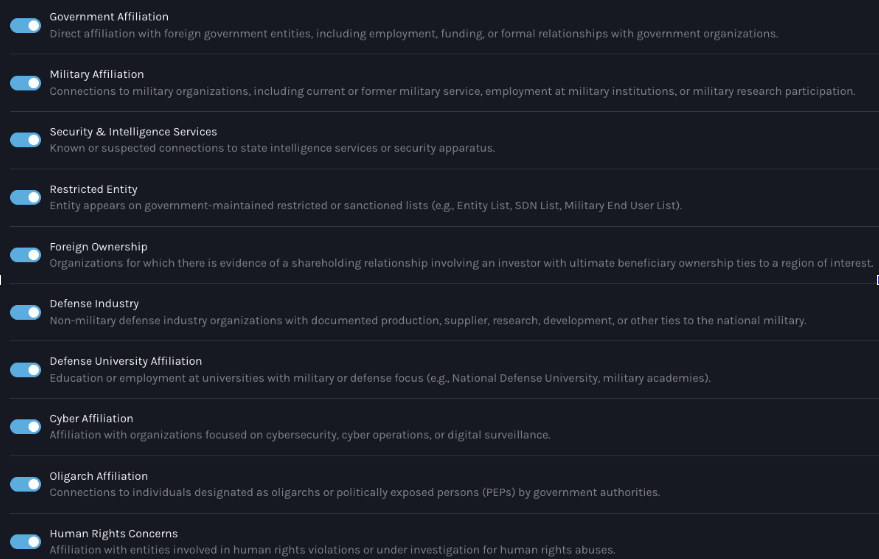
Note: Manifest automatically escalates these affiliations noted below. The alert severity can be adjusted in the individual settings of each affiliation type.
Prerequisites
- Your organization has the Foreign Risk feature enabled
- You have an SBOM uploaded to an asset in the platform
- Foreign Risk policies are configured in Settings (see Configure Foreign Risk policies)
Review Foreign Risk on an asset
Risk Overview card
After uploading and enriching an SBOM, navigate to the asset's Risk Overview tab. A Foreign Risk card appears on the right side of the page showing a summary of:
- Policy violations — number of distinct policies violated
- Components — number of components flagged as high risk
- Contributors — number of contributors flagged as high risk
The overall Foreign Risk for each component or contributor inherits the highest severity of any individual violation associated with it.
Foreign Risk tab
Click the Foreign Risk card or the Foreign Risk tab at the top of the asset detail page to view the full Foreign Risk breakdown. The tab label displays the total number of policy violations detected (for example, "Foreign Risk 8").
At the top of the tab, a summary surface shows:
- Riskiest component — the component with the most or highest-severity policy violations
- Riskiest contributor — the contributor with the most or highest-severity policy violations
- Policy violated — the total number of distinct policy violations across the asset
The tab includes two sub-views:
Component view
The default view lists all components with Foreign Risk violations, sorted with the highest-severity violations first. Each row shows:
- Risk — the severity level (Critical, High, Medium, Low, or N/A)
- Component — the repository name (for example,
pytorch/pytorch) - Policy severity — a graphical bar representing the distribution and severity of violations
Click the arrow (>) on any component row to open a detail panel on the right. This panel shows:
- The specific policy violations for that component and their severities
- The number of contributors associated with that component
- A link to the component's source repository on GitHub
From the component detail panel, click the arrow (>) next to a contributor to view that individual's policy violations.
Contributor view
Click the Contributor tab within the Foreign Risk tab to see all contributors across the asset. Each row shows:
- Contributor name
- Last commit date
- Location
- A graphical bar representing the number and severity of their violations
Click the arrow (>) on any contributor row to open a contributor detail panel showing:
- All policy violations for that contributor, with severity
- A link to the contributor's GitHub profile
- University or organizational affiliations where available
Configure Foreign Risk policies
Navigate to Settings > Foreign Risk Policies to view and manage your organization's Foreign Risk policies.
Available risk categories
The platform supports 18 Foreign Risk categories sourced from proprietary intelligence data:
| Category | Code |
|---|---|
| Government | GOV |
| Military | MIL |
| Security and Intelligence | SIS |
| Restricted Entity | RES |
| Cyber Affiliation | CYB |
| Foreign Ownership | FOR |
| Defense Industry | DEF |
| Defense University | DUN |
| Oligarch | OLG |
| Human Rights | HUM |
| Association | ASO |
| Award Program | AWP |
| Concurrent Employment | CEM |
| Event | EVT |
| Funding Program | FND |
| Network Group | NWG |
| Recruitment Organization | REO |
| Recruitment Program | RCP |
The following categories are enabled by default: CYB, SIS, GOV, RES, and MIL.
Enable or disable a policy
- Go to Settings > Foreign Risk Policies
- Use the toggle next to each policy category to enable or disable it
- Use the search bar to find a specific policy by name or keyword
Set alert severity and target countries
- Click the Settings icon next to any enabled policy
- Select the alert severity: Critical, High, Medium, or Low
- Add one or more countries this policy should apply to
- Click Save
When you save changes to a policy, the platform automatically re-triggers Foreign Risk analysis for all applicable assets. Allow a few minutes for updated results to appear.
What to expect
After uploading an SBOM and completing enrichment, the Foreign Risk tab will populate with any detected violations. If the SBOM is still processing, the Foreign Risk tab displays an empty state until the scan is complete.
A component or contributor with no policy violations will not appear in the violation lists. Assets where no violations are detected will show a clear state on the Risk Overview card.
Troubleshooting
-
Foreign Risk tab shows empty state after upload
- Cause: The SBOM may still be processing or enrichment has not completed
- Fix: Wait a few minutes and refresh the page. If the tab remains empty after enrichment completes, verify that Foreign Risk policies are enabled in Settings
-
Expected violation not appearing after policy change
- Cause: Re-analysis triggered by a policy update can take a few minutes
- Fix: Wait two to three minutes, then reload the asset detail page
Updated about 14 hours ago